Snowflake
Add your Snowflake warehouse as an external catalog in Altertable to query and analyze it alongside your other data sources.
Prerequisites
Setup Snowflake Network Policy
Before connecting Snowflake to Altertable, you'll need to configure your Snowflake network policy to allow connections from Altertable.
Update your Snowflake network policy to include Altertable's egress IP addresses in the allowed list.
Example: Creating a Network Policy
You can create a network rule in and network policy to allow Altertable's IP address:
-- Create a network rule for Altertable's IPCREATE NETWORK RULE altertable_network_ruleMODE = INGRESSTYPE = IPV4VALUE_LIST = ('46.224.237.164', '46.4.253.101', '94.130.221.56', '188.40.149.154', '138.199.242.155', '138.199.241.17');-- Create a network policy that uses the network ruleCREATE NETWORK POLICY altertable_network_policyALLOWED_NETWORK_RULE_LIST = ('altertable_network_rule');-- Apply the policy to your user-- WARNING: This action may revoke the user's access to the Snowflake dashboard.-- Using a dedicated user is recommended.ALTER USER "<username>" SET NETWORK_POLICY = altertable_network_policy;-- Or add the rule to an existing policyALTER NETWORK POLICY your_existing_policyADD ALLOWED_NETWORK_RULE_LIST = ('altertable_network_rule');
This ensures that Altertable can establish connections to your Snowflake account. Refer to Snowflake's network policy documentation for more details on managing network policies.
Create an Access Token
Generate one for the user and role you want Altertable to connect with:
ALTER USER "<username>" ADD PROGRAMMATIC ACCESS TOKEN altertable_tokenROLE_RESTRICTION = '<role>'DAYS_TO_EXPIRY = 365;
Connecting to Altertable
To add a new Snowflake external catalog:
- Navigate to the Catalogs section in the dashboard
- Click New catalog
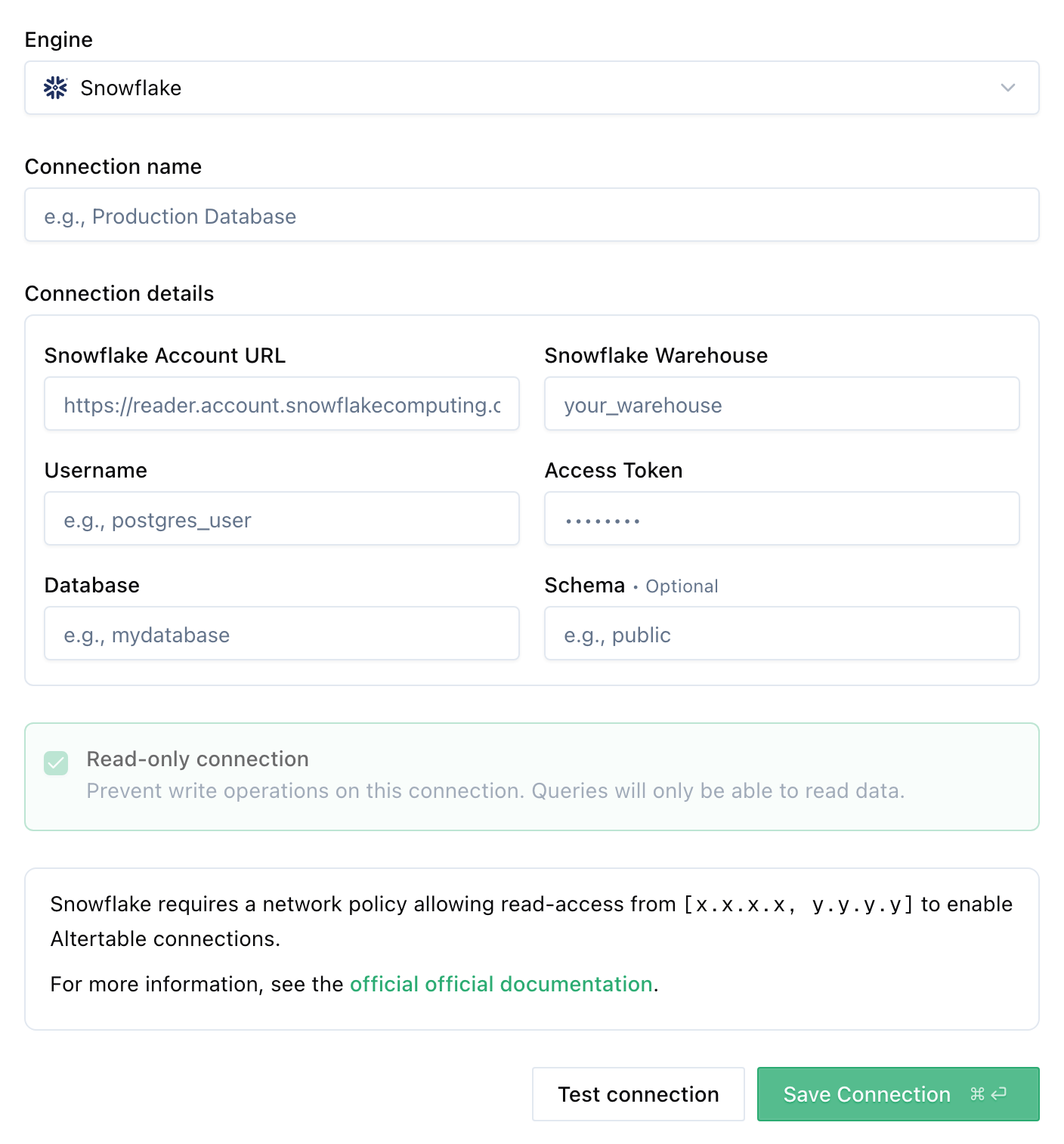
- Select Snowflake as the engine
- Fill in the connection details:
- Snowflake Account URL: Your Snowflake account URL (learn how to find your account URL)
- Snowflake Warehouse: The warehouse to use for queries (learn more about warehouses)
- Username: Your Snowflake username
- Access Token: Your Snowflake access token
- Database: The name of the database to connect to
- Schema (optional): The name of the schema to connect to
- Click Save
Once added, you can start querying your Snowflake data through Altertable's SQL engine.